
Table of contents
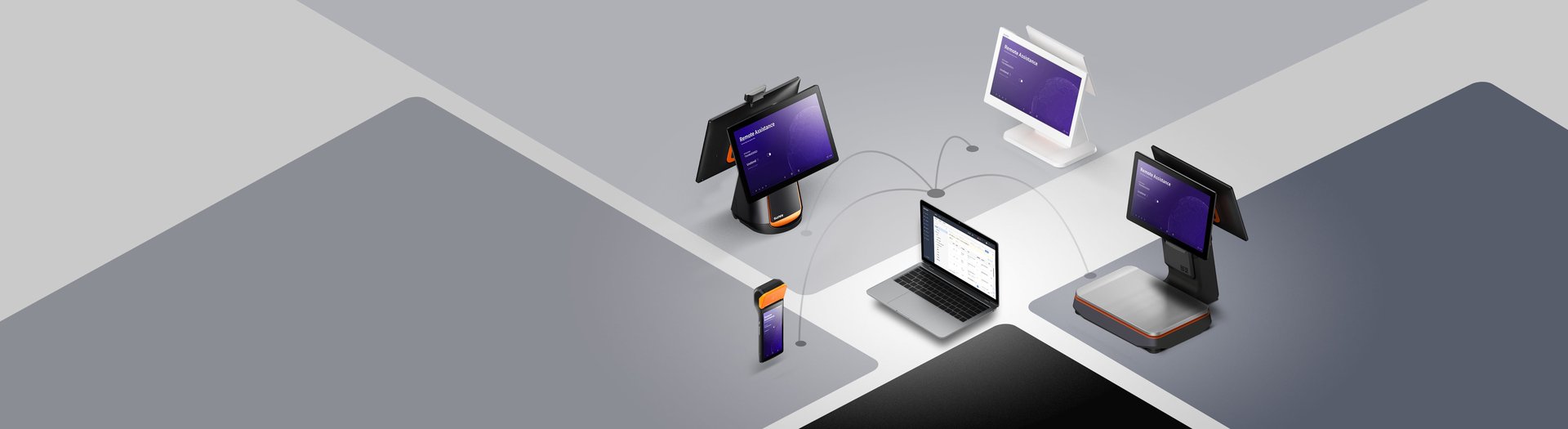
If you are working with the SUNMI MDM Partner Portal for a US or Canadian deployment, this guide is written for you. When you scale from a handful of SUNMI devices on one counter to dozens or hundreds across multiple stores, the thing that starts to matter is not the hardware, it is what you can do to the hardware without leaving your office. SUNMI’s answer to that question is the Partner Portal MDM. This is the official SUNMI fleet management console, and if you are running SUNMI devices in the United States or Canada, it is the platform that sits between you and every device you own.
Rosper is the authorized SUNMI distributor for the US and Canada. We stock P-series payment devices, T-series desktop POS, K-series kiosks, and V-series mobile devices in our Maryland and Los Angeles warehouses, and we set up Partner Portal accounts and fleet-management workflows for operators every week. This guide walks through the Partner Portal end to end: what lives in it, how to get your devices into it, how to push apps and ROMs to the fleet, and the handful of operational patterns that keep a large SUNMI deployment running smoothly.
What the SUNMI MDM Partner Portal is
The SUNMI Partner Portal is a cloud-hosted MDM for SUNMI commercial hardware. It manages devices the way any modern MDM manages devices: you see every unit by serial number, you group them by store or region or device type, you push apps and configurations to them, you see the health of the fleet, and you reach in to one device when it misbehaves. What makes it different from a generic Android MDM is that it speaks SUNMI-specific capabilities natively: the SUNMI App Store, SUNMI ROM OTA, SUNMI-specific kiosk policies, and the SUNMI Remote Assistance APK all integrate without a separate agent.
The SUNMI MDM Partner Portal is the MDM for SUNMI devices. It is not a substitute for your POS application’s back office, and it is not a payment processor. It manages the device layer. Your POS, your payments, your loyalty and inventory run above it.

Account structure: main account, sub-accounts, and partner relationships
A SUNMI Partner Portal account has two kinds of identities. The main account is the one that owns the devices. The sub-accounts are ones the main account creates to give limited access to teams, franchises, or store managers without giving them the keys to the whole fleet.
If Rosper sold you the devices and you asked us to set up your MDM, your main account is in your company name. If you are a SUNMI partner (an ISV or a reseller), you have a partner main account that holds every device you sell. Partners can transfer devices to sub-accounts belonging to their customers, or they can accept transfer requests from other partners (for example, if a franchise group switches distributors).
The practical lesson: set up the account hierarchy you want before you bind devices. Moving devices between accounts later is possible, but it generates support tickets and waiting time. For most US and Canadian operators, a clean pattern is: one main account at the corporate level, sub-accounts per region or brand, device groups inside each sub-account by store.
Getting your devices into the Partner Portal
SUNMI ties every device to an account by serial number. Rosper normally completes this binding before the devices ship, so when you open the Partner Portal you already see your units. If a device is not showing up, it has not been bound yet. The fastest path is to email your SN list to [email protected] from the address registered to your main account and ask them to bind the SNs. Include your MDM account name and make sure the email comes from the account-owner email, or the binding team will ask you to verify and you lose a day.
If you bought units through a channel other than Rosper and need to move them into your SUNMI MDM Partner Portal, the Partner Portal itself has an inbound transfer request flow: the sending partner initiates a transfer, your account receives the request, you accept, and the devices appear under your account. This is the correct path when receiving units transferred from another SUNMI partner.
Pushing apps: the SUNMI App Store and Auto Install
SUNMI’s app distribution path is the SUNMI App Store integrated with the Partner Portal. The short version: you upload your APK once, and the Partner Portal pushes it to every targeted device. The longer version has a few details that matter in production.
When you upload an APK to the SUNMI Store, it goes into your account’s catalog. From there, you create an Auto Install policy that targets a device type, a device group, or a specific set of serial numbers. On the target devices, the APK is delivered and installed on the next sync, silently if Auto Install is configured, or with a user prompt if it is not.

The SUNMI MDM Partner Portal also supports Gray Release, which is the SUNMI term for a staged rollout. Instead of pushing the new APK to the entire fleet at once, you push it to a subset (for example, ten pilot stores), verify for a day or two, and then widen the rollout. In a US multi-store retail or QSR context, this is the only sane way to ship a new POS app version. A Gray Release that goes wrong is a ten-store headache, not a hundred-store outage.
Two traps to avoid. First, Auto Install depends on the “Auto Install” device setting being on. It is on by default on SUNMI devices, but if someone toggled it off on a pilot unit, the APK will wait indefinitely. Second, if a kiosk policy is active on the device, the APK update is delivered but the installed app only takes effect after the kiosk policy allows it. Plan your Gray Release runway to account for the kiosk sync interval, not just the APK push interval.
Pushing ROMs: SUNMI ROM OTA and “Automatic Upgrade at Night”
The SUNMI MDM Partner Portal also pushes ROMs. SUNMI ROM OTA is the procedure by which the device pulls the latest firmware image from SUNMI servers and applies it on reboot. Because ROM updates are heavier than APK updates, SUNMI provides an “Automatic Upgrade at Night” setting that schedules the update during a store’s off hours. For US operators whose stores close at 11 PM and open at 6 AM, setting the overnight upgrade window avoids any customer-facing disruption.
Two practical notes. One, turn off “Speed Limit” during a ROM upgrade window. The speed limit is a per-device download throttle that is appropriate during retail hours to protect store Wi-Fi for POS traffic, but it slows a ROM download to the point of failing in a narrow overnight window. Two, stage your ROM upgrades the same way you stage APK pushes: a pilot store for one night, the region for the next night, the fleet over the following week. A ROM issue found on pilot devices is recoverable. A ROM issue found on the entire fleet is a Monday-morning emergency.
Kiosk mode, Remote Assistance, and device-level capabilities
Kiosk mode on SUNMI devices is enforced by the Partner Portal, as covered in detail here. The short version for this guide: configure kiosk model in ALL > System Customization > Kiosk Model, assign the kiosk app plus the SUNMI Remote Assistance APK to the device type, set an exit password, and verify on a pilot unit before rolling out.
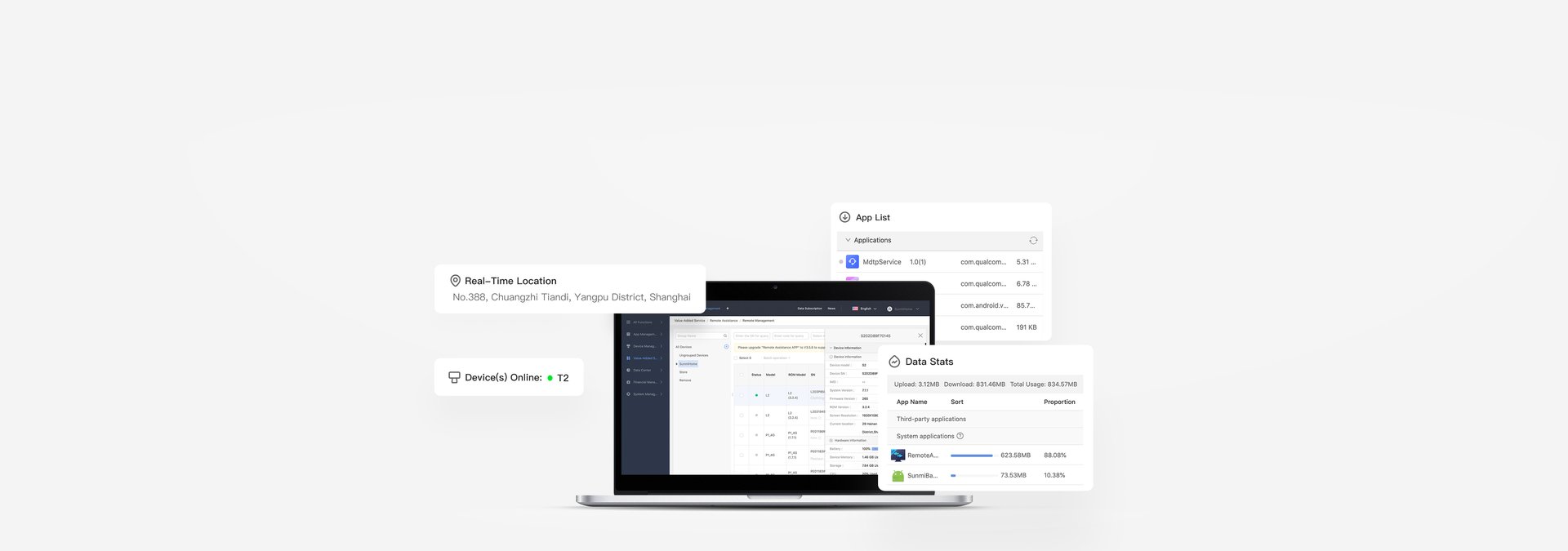
Remote Assistance is the device-level remote screen and control service. From the Partner Portal you launch a Remote Assistance session against a specific serial number, see the device screen, and interact as if you were standing in front of it. For US and Canadian operators who cannot afford a site visit for every printer jam or scanner config change, Remote Assistance is the single most important operational feature in the MDM.
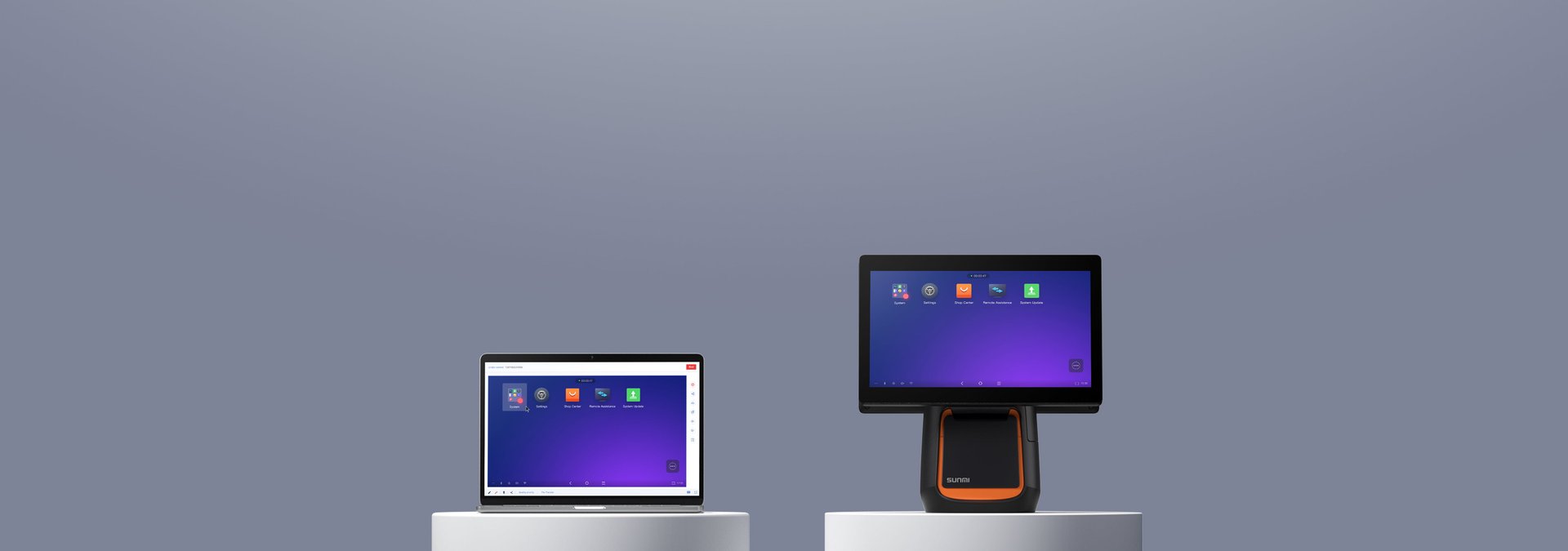
Alongside Remote Assistance, the Partner Portal also provides RemoteManager log pull. If a device is misbehaving and you need the SPBase log, Wi-Fi log, or APK log, you can pull it remotely without a site visit. These logs are what Rosper support or SUNMI technical support will ask for when diagnosing an issue. For payment integration options on managed devices, see SUNMI semi-integrated payment SDK modes.
Transfers, returns, and device lifecycle
Devices move. A corporate-owned fleet is transferred to a franchisee. A pilot store is relocated. A payment device is returned for RMA. The Partner Portal has explicit flows for each of these.
Transferring devices to a sub-account inside your own organization is a self-service flow in the portal: select the devices, pick the destination sub-account, confirm. Transferring devices to another partner (a different SUNMI account outside your organization) is a partner-to-partner transfer: you initiate, the receiving partner accepts.
For RMA, SUNMI does not require you to un-bind the device before shipping it for repair. The SUNMI US Service portal handles the repair ticket separately from the MDM binding. When the unit returns from repair, it is still bound to the same account.
Invoices and billing records
The Partner Portal exposes the device history, not the commercial invoice. When you need an invoice for procurement or for an accounting record, you can pull it from the MDM: the invoice from MDM flow is available for partners, and it generates the purchase invoice for units bound to the account. For US operators this is often the cleanest way to get a procurement record that matches the device SNs.
Operational patterns that work in US and Canadian deployments
After years of helping operators stand up and run SUNMI fleets across the US and Canada, a handful of patterns consistently pay for themselves.
Separate the roles. One account owner who can create sub-accounts and transfer devices. Device group administrators who can push apps and ROMs but cannot delete devices. Store managers who can see their own store and raise a Remote Assistance request but cannot touch the fleet. This is standard MDM hygiene and it saves real incidents.
Write the runbook once. A short internal document that captures: where the account lives, who the account owners are, how to push an APK update, how to trigger a ROM update, how to exit kiosk mode, and how to raise an RMA. Three pages, stored in your team wiki. Every new store opening or new IT hire saves hours.
Use Gray Release for both APKs and ROMs. Not sometimes. Always. The operational cost of an always-Gray-Release discipline is low. The operational cost of a full-fleet regression from a bad push is high.
Pair the Partner Portal with a clear support escalation. Most issues on SUNMI devices are solvable in the Partner Portal with Remote Assistance and a log pull. A smaller number require Rosper support. A smaller number still require SUNMI engineering. Your runbook should name the escalation path so the store manager is not guessing at 7 AM.
Frequently asked questions
Q: Do I need a Partner Portal account to run SUNMI devices?
For a standalone hobby or single-store deployment you can run a SUNMI device without an MDM, but every production North American deployment we work with uses the Partner Portal. Kiosk mode, ROM OTA, and Remote Assistance all require it.
Q: How do I bind new devices to my Partner Portal account?
Email your SN list to [email protected] from the email registered to your main account. If Rosper shipped the units, we usually complete this binding before the devices arrive.
Q: Can I move devices between sub-accounts after they are bound?
Yes. Device transfer between sub-accounts under the same main account is a self-service flow. Partner-to-partner transfer across SUNMI accounts requires acceptance from the receiving partner.
Q: What is Gray Release in the Partner Portal?
A staged APK or ROM rollout. You push to a subset of the fleet first, verify, and widen the rollout. For multi-store operators, Gray Release is the only safe way to ship a new POS version.
Q: Does Rosper manage the Partner Portal on my behalf?
Yes, on request. For US and Canadian operators who prefer a managed-device model, Rosper handles the Partner Portal account, APK staging, ROM rollouts, and Remote Assistance as part of a managed-hardware package.
Q: Can I get an invoice for my SUNMI devices through the Partner Portal?
Yes. The invoice-from-MDM flow generates an invoice for devices bound to the account. If you need an additional invoice for a specific procurement record, Rosper can issue one directly as the distributor.
Get your fleet configured
If you are starting or scaling a SUNMI fleet in the US or Canada, Rosper can bind your devices, set up the Partner Portal account, apply your APK and kiosk policies, and ship pre-provisioned units to each store. See the Rosper product catalog, the kiosk mode setup guide, and contact [email protected] or visit our contact page.