
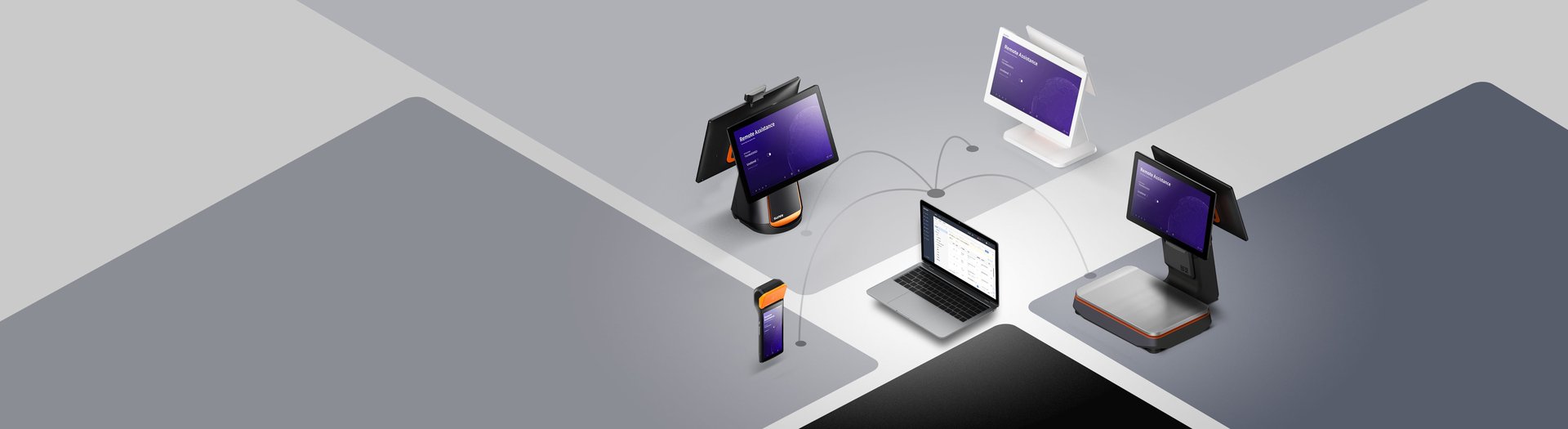
When a SUNMI POS terminal goes down at a busy restaurant on a Friday night, you don’t have the luxury of waiting for a technician to drive across town. SUNMI’s built-in Remote Assistance feature lets authorized support teams access and troubleshoot devices directly from a web browser, no physical presence required.
In this guide, we walk through exactly how SUNMI Remote Assistance works, the step-by-step session initiation process, security guardrails, and when to reach for Remote ADB instead. We also explain how Rosper supports ISVs and merchants with pre-deployment configuration and ongoing device management.
–
What Is SUNMI Remote Assistance?
SUNMI Remote Assistance is a browser-based remote access tool integrated into SUNMI’s Mobile Device Management (MDM) platform, accessible through the SUNMI Partner Portal. It allows tech support staff, ISV developers, and authorized service personnel across the United States and Canada to view and interact with a SUNMI device’s screen in real time, right from a Chrome or Edge browser, with no additional software installation on the support technician’s machine.
Key capabilities include:
- Real-time screen viewing and remote control of the device
- Device information retrieval (model, OS version, SN, etc.)
- Remote diagnostics, checking network status, connectivity, printer function, and more
- App installation and management, push or remove apps remotely
- File transfer, send configuration files or APK packages to the device
- Two access modes: Attended (merchant must be present to accept each session) and Unattended (pre-authorized, no merchant interaction required)
> Source: SUNMI NAR_HOWTO, How to Remote to Sunmi Device through Remote Assistance
–
Prerequisites: Setting Up Your MDM Account
Before you can initiate a remote session, you need a SUNMI MDM account with the devices enrolled under it.
Step 1: Create or Access Your MDM Account
1. Go to https://partner.sunmi.com and log in (or apply for a new partner account if you don’t have one yet).
2. Devices must be assigned to your account. If you have a list of device serial numbers that aren’t yet enrolled, contact SUNMI support at [email protected] and request they be added to your account.
Step 2: Confirm Remote Assistance App is Installed on the Device
The Remote Assistance app comes pre-installed on most SUNMI devices. If it’s missing:
- Open the SUNMI AppStore (the default app on every SUNMI device)
- Search for and install Remote Assistance
Step 3: Choose Your Access Mode
On the device, open Remote Assistance and locate the Unattended toggle:
- Unattended OFF (Attended Mode): The merchant must be physically present at the device to accept each remote connection request. A popup appears on the device screen; the merchant taps Accept. Ideal when merchant consent is required for every session.
- Unattended ON (Unattended Mode): Once enabled, the device automatically accepts remote connections from authorized MDM accounts without any merchant interaction. Use this only for devices that are consistently monitored or where a pre-authorized support agreement is in place.
> Security Note: Enabling Unattended mode means any authorized MDM operator can connect to that device at any time. Only enable it on devices covered by your merchant support agreement and where merchant data sensitivity has been assessed.
–
How to Initiate a Remote Assistance Session: Step by Step
From the MDM Portal (Technician Side)
Step 1: Log in to MDM
Navigate to https://partner.sunmi.com → log in with your partner credentials.
Step 2: Navigate to Remote Assistance
In the MDM sidebar: ALL → VAS → Remote Assistance → Remote Management
You will see a list of all devices enrolled under your account, showing their online/offline status.
Step 3: Select the Target Device
Click on the device you need to troubleshoot. The context menu will show available options:
| Feature | Description |
|---|---|
| Device Information | Retrieve model, OS, serial number, network status |
| Remote Control | Start a live remote access session (requires the Remote Assistance app to be running on the device) |
| App Management | Push or remove applications |
| File Transfer | Send files or APK packages to the device |
Step 4: Start the Session
If Remote Control is greyed out, the Remote Assistance app on the device may not be active. In that case:
- Ask the merchant (or go on-site) to launch the Remote Assistance app on the device
- Once the app is running, the Remote Control button in MDM becomes active
- Click Remote Control to initiate the live session
> Tip: For after-hours or unmanned locations, pre-enable Unattended mode on the device so you can connect without requiring on-site merchant interaction.
–
Security: Permissions, Merchant Consent & Best Practices
Remote access to a merchant’s POS device involves sensitive business data and payment card information. For PCI-DSS compliant environments, remote access must follow your QSA-approved procedures. Follow these security best practices:
Merchant Consent Requirements
- Always inform the merchant before initiating a session. Even in Unattended mode, a best practice is to notify the merchant when a support session begins and ends.
- In Attended mode, the merchant must physically accept the connection on the device, this is the default and recommended setting for most deployments.
- Keep a log of all remote sessions (SUNMI MDM logs session activity), this is important for PCI-DSS compliance and dispute resolution.
Access Control
- Only grant MDM account access to trusted, named support staff.
- Use role-based access in MDM, separate read-only diagnostic roles from full remote control permissions.
- When a support engagement ends, revoke the device assignment or MDM access for temporary support personnel.
Device-Level Security
- Ensure the device lock screen PIN/password is known only to authorized merchant staff, not the support team.
- Do not store merchant payment credentials or card data on the device’s general file system. SUNMI payment terminals separate payment security domains from the general OS.
- After each remote session, close the Remote Assistance app on the device to prevent unauthorized future access.
Remote Assistance Package Licensing
SUNMI offers Remote Assistance as a subscription service (SUNMI Remote Assistance Premier Edition) (e.g., “Premier Edition”). If your package expires, remote access services are suspended. Rosper monitors these renewals for all devices under management, contact us to ensure uninterrupted coverage.
> From the field: A SUNMI partner renewal reminder was issued in January 2026 for a Premier Edition Remote Assistance package (Order #MD176547564439695401) expiring in 1 day. Always renew before expiry to avoid service interruption at critical times.
PCI-DSS Note: Merchants processing credit cards must ensure remote access complies with PCI-DSS requirements 8.1 (user authentication), 10.2 (audit logging), and 12.3 (third-party access policies). Consult your Qualified Security Assessor (QSA) before enabling Unattended mode in production payment environments.
–
Remote Assistance vs. Remote ADB: When to Use Which
For SUNMI devices, SUNMI Remote Assistance and Remote ADB are the two remote access pathways. Choosing the right one depends on what you need to accomplish:
| Feature | Remote Assistance | Remote ADB |
|---|---|---|
| Access method | Browser (MDM portal) | ADB command line (USB-over-network) |
| Merchant consent | Required (or Unattended mode) | Requires Developer Mode enabled on device |
| Ease of use | GUI, no CLI needed | Requires ADB commands |
| Screen viewing | Full live view | Mirroring via scrcpy or similar |
| Remote control | Full touch emulation | With additional tools |
| Log retrieval | Via MDM file transfer | Via adb pull |
| App install/push | Via MDM interface | Via adb install |
| Device factory reset | Not recommended | Possible but risky |
| Best for | General troubleshooting, diagnostics, config changes | Deep debugging, log collection, kernel-level issues |
| Security | MDM-controlled, logged, permission-gated | Requires device in Developer Mode, higher risk |
Use SUNMI Remote Assistance when:
- You need to view the device screen and interact with it visually
- You want a logged, auditable support session
- You’re pushing config changes, apps, or files
- The merchant or on-site staff can assist if needed
Use Remote ADB when:
- You need to pull system logs (
adb pull /sdcard/SPBase.log) - You’re debugging apps at the APK level
- The device is already in Developer Mode and you need shell access
- SUNMI support directs you to run specific ADB diagnostics
> For MacBook users, SUNMI provides a Remote ADB guide for Mac. Windows users can follow the Remote ADB guide for Windows.
–
Remote Diagnostics: Beyond Remote Control
SUNMI devices also come with a built-in POS Steward diagnostic tool (found in the Tools folder on the device desktop). Run it to automatically test:
- Network status, Wi-Fi and cellular connectivity
- Internet connectivity, DNS and gateway reachability
- Printer function, including print head aging tests
- Display, color saturation and bad pixel detection
- Touch screen, sensitivity and multi-touch
- Speaker, audio output
- EMV / NFC / MSR, payment reader interfaces
- Camera and flash
- Physical buttons
This is a great first step before initiating a full Remote Assistance session, diagnostics can pinpoint hardware issues that don’t require remote access at all.
–
Rosper’s Role: Optional Value-Added Services
Note: Remote Assistance works with any SUNMI authorized partner. The services below are optional value-adds Rosper provides to ISVs and multi-location merchants who want turnkey device management support.
When you purchase SUNMI devices through Rosper, you get more than hardware, you get a partner invested in keeping your fleet running.
Pre-Deployment Configuration
Before your SUNMI devices ship to merchant locations, Rosper can:
- Enroll devices in your MDM account, We handle the SUNMI partner portal setup and device binding so devices appear in your MDM on day one
- SUNMI Remote Assistance – Enable, Pre-configure Unattended mode on devices where merchant support agreements allow it
- Push default apps and configs, Pre-load your ISV’s POS software and set default startup apps via MDM
- Set up developer mode, Enable ADB access where needed for your development workflow
Ongoing Troubleshooting Support
- First-line device triage, Run POS Steward diagnostics together with your team over a call
- Remote Assistance session coordination, Guide merchant staff through launching the Remote Assistance app and enabling Unattended mode
- MDM account management, Add/remove devices, manage operator accounts, handle device transfers between sub-accounts
- Log retrieval, Pull SPBase logs and EMV kernel version info to send directly to SUNMI Engineering for root cause analysis
MDM & Device Lifecycle Management
- Renewal monitoring, Rosper tracks your Remote Assistance package expiration dates so you don’t lose access unexpectedly
- Device transfers, When merchants change hands or ISVs take over a fleet, we handle the SUNMI sub-account transfer process
- Multi-device management, Organize large device fleets with batch operations through MDM
> Need help with a SUNMI device? Email [email protected] or Contact Rosper, your authorized SUNMI North America distributor with U.S. inventory, fast shipping, and SUNMI-authorized after-sales support across North America.
–
TL;DR: Quick Reference
| Question | Answer |
|---|---|
| How to start a remote session? | Log into partner.sunmi.com → ALL → VAS → Remote Assistance → Remote Management → select device → Remote Control |
| Does the merchant need to be there? | Only in Attended mode. Enable Unattended mode in the Remote Assistance app for 24/7 access |
| Is it secure? | Yes, MDM-controlled, session-logged, AES-encrypted. Follow merchant consent best practices |
| What’s the difference from Remote ADB? | Remote Assistance = browser GUI, MDM-logged, merchant-friendly. Remote ADB = command line, deeper access, requires Developer Mode |
| How do I get help? | Contact Rosper for device procurement, MDM setup, and SUNMI-authorized technical support |
–
*This article was last updated April 2026. SUNMI’s MDM interface and Remote Assistance features may change with future software updates. Always refer to the SUNMI NAR_HOWTO knowledge base and SUNMI Developer Docs for the latest procedures.*
Disclaimer: This guide is provided for informational purposes. Always backup merchant data before performing remote operations. Rosper and SUNMI are not liable for data loss or operational disruptions resulting from improper use of Remote Assistance features. Ensure you have proper authorization and merchant consent before accessing devices remotely. For PCI-DSS compliant environments, consult your QSA before enabling Unattended mode.
About the Author
Conner Morgan is a POS hardware specialist at Rosper, helping businesses across the United States and Canada find the right SUNMI terminals for their needs. With years of experience in retail and hospitality technology, Conner writes about POS hardware selection, payment processing, and deployment logistics.