
*Managing 10, 50, or 500 SUNMI POS terminals across multiple locations doesn’t have to mean expensive third-party MDM subscriptions or sending technicians to every site. SUNMI’s built-in Terminal Management System (TMS) gives ISVs and fleet operators a free, cloud-based command center for their entire SUNMI hardware fleet.*
What Is SUNMI TMS?
SUNMI TMS (Terminal Management System) is a cloud-based fleet management platform built directly into SUNMI OS , the commercial-grade Android operating system running on every SUNMI device. No additional software to install, no per-device license fees for core features.
Whether you call it SUNMI TMS, SUNMI DMP, or the SUNMI Partners Platform, the functionality is identical. Access it through the SUNMI Partners Platform at partners.sunmi.com. Every SUNMI device ships with TMS capability already enabled , you just activate your account and enroll your devices.
SUNMI TMS is designed for:
- ISVs (Independent Software Vendors) rolling out POS apps to end-user merchants
- Deployment companies managing hardware across hundreds of locations
- Retail and restaurant chains running SUNMI terminals at multiple sites
- Hospitality operators needing centralized control without IT overhead
Key distinction: TMS and the SUNMI Partners Platform are the same system. You may see both names used in SUNMI’s documentation and by their support team.
What SUNMI TMS Can Do
SUNMI TMS covers the management operations that fleet operators actually need day-to-day. Here’s a full breakdown:
1. OTA (Over-the-Air) System Updates
Keep every device in your fleet on the correct OS version , without touching hardware.
- Push SUNMI OS updates to individual devices, groups, or the entire fleet
- Schedule updates for off-peak hours to avoid disrupting operations
- Roll back to a previous OS version if an update causes issues
- SUNMI OS 4.0 (based on Android 13) includes Hyper Engine for 30% faster app startup, PCI-compliant security, and native peripheral drivers for printers, scanners, and customer displays
Where to find it in TMS: Navigate to Device Management → Firmware Upgrade in the left sidebar. Select target devices or groups, choose the firmware version, and click Push Upgrade.
2. App Deployment and Management
Control what software runs on every device , silently and at scale.
- Silent app install/uninstall: Push apps to devices with no user interaction required on the device itself
- Private App Store: Upload your own branded or custom apps and distribute them exclusively to your enrolled devices
- Grayscale release: Roll out app updates to a percentage of devices first (e.g., 10%, then 50%, then 100%) to catch issues before full deployment
- App version control: Pin specific app versions per device group , useful when different locations run different configurations
- APK whitelist: Only approved apps can be installed; everything else is blocked
Where to find it in TMS: Go to App Repository to upload and manage your private apps. Use App Management to assign apps to specific devices or groups and configure auto-update policies.
3. Kiosk Mode (System-Level Lockdown)
Lock devices into single-app or multi-app mode so employees and customers only see what they should.
- Single-app kiosk: Device shows only one app at boot , ideal for order-taking kiosks, self-checkout stations, or dedicated POS terminals
- Multi-app kiosk: Whitelist a small set of apps; all others are hidden or blocked
- Auto-start on boot: Configured app launches automatically when the device powers on
- Status bar and navigation hidden: Users cannot exit the kiosk environment
Because kiosk mode runs at the system level (root) within SUNMI OS, it survives device reboots and cannot be killed by the Android memory manager. This is a critical advantage over third-party kiosk tools that run as regular Android apps.
Where to find it in TMS: Go to Device Management → Device Restrictions → Kiosk Mode. Toggle Enable Kiosk, select the app(s) to whitelist, and configure auto-start behavior.
4. Remote Configuration Management
Push system settings to devices without physical access.
- Wi-Fi and network configuration (SSID, password, proxy settings)
- Screen brightness, sleep timeout, auto-rotate
- USB port control (enable/disable USB file transfers , critical for security)
- Date/time sync and timezone settings
- NFC, Bluetooth, and GPS on/off controls
- Screen lock policy and password enforcement
Where to find it in TMS: Go to Device Management → Configuration Templates. Create a configuration profile, assign it to device groups, and push it , changes apply immediately on enrolled devices.
5. Geofencing and Location Tracking
Set geographic boundaries and receive alerts when devices leave designated areas.
- Draw a geofence around a location, campus, or delivery zone on the map
- Configure alert rules: notify by email, push, or webhook when a device enters or exits a zone
- Automatic actions on boundary breach: lock device, wipe data, or send alert
- View real-time device locations on the TMS map dashboard
This feature is included at no extra cost on SUNMI TMS. On Esper and most third-party MDM platforms, geofencing requires the most expensive tier ($6+/device/month).
Where to find it in TMS: Navigate to Device Management → Geofencing to create zones and assign devices. Configure alert rules under Alarm Rules.
6. Remote Assistance
Troubleshoot devices without visiting the location.
- Remote View: See the device’s screen in real time from the TMS dashboard
- Remote Control: Take full control of the device to fix settings, navigate apps, or run diagnostics
- Screenshot capture: Grab the current screen state for issue documentation
- Print log retrieval: Pull printer transaction logs remotely to diagnose receipt printer issues without a site visit
SUNMI has stated that remote printer diagnostics resolve approximately 80% of printer-related support tickets without dispatching a technician.
Where to find it in TMS: Go to Remote Assistance in the top navigation. Select a device and click Remote View or Remote Control. Note: For remote control, the device must have remote access set to Unattended in its settings before the terminal is installed at a location.
7. Fleet Monitoring and Analytics
The SUNMI TMS dashboard gives you a real-time health overview of your entire device fleet.
- Device online/offline status with last-seen timestamps
- App crash reports and system error logs
- Hardware health indicators (storage, memory, battery where applicable)
- Data usage tracking
- Device activity timeline , when a device was restarted, a config was pushed, an app was updated
Where to find it in TMS: The Dashboard (home screen) provides an at-a-glance fleet overview. For detailed per-device analytics, go to Device List → [Device Name] → Device Details.
How to Set Up SUNMI TMS: Step-by-Step
Setting up SUNMI TMS is straightforward. Here’s how to go from zero to fully managing your SUNMI fleet through the SUNMI Partners Platform.
Prerequisites
- SUNMI devices (any current model: T3 PRO, D3 PRO, D3 MINI, V3, V3 PLUS, K2, K2 MINI, CPad, L3, T2, T2 MINI)
- A SUNMI Partners account (free)
- Devices connected to the internet via Wi-Fi or Ethernet
Step 1: Create Your SUNMI Partners Account
1. Go to SUNMI Partners and click Sign Up or Login
2. Register as an organization (company name, contact email, region)
3. Verify your email and log in to the Partners Portal
Tip: Use a business email address tied to your organization, not a personal Gmail. This makes it easier to transfer account ownership if your team changes.
Step 2: Create Your Organization Structure (Groups and Sub-Groups)
Before enrolling devices, set up your organizational hierarchy in TMS to match how your business actually operates.
Example structure:
“
My Company (root)

├── East Region

│   ├── New York

│   │   ├── Store #101

│   │   └── Store #102

│   └── Boston

│       └── Store #201

└── West Region

    ├── Los Angeles

    └── San Francisco

“
Each sub-group inherits policies from its parent, but you can override at any level. This means you can push a company-wide Wi-Fi config to the root, then push region-specific app sets to each region group.
Where to find it in TMS: Go to Organization Management in the left sidebar. Click Add Sub-Group to build your hierarchy.
Step 3: Enroll Your Devices
Devices can be enrolled via QR code, SMS, or batch CSV import , choose the method that fits your deployment scale.
Method A: QR Code (best for small fleets or testing)
1. In TMS, go to Device List → Add Device → QR Code
2. Generate the QR code and display it on screen
3. On the SUNMI device: go to Settings → MDM → Enroll Device, scan the QR code
4. The device appears in your TMS Device List within seconds
Method B: SMS Provisioning (best for field deployment)
1. In TMS, go to Device List → Add Device → SMS
2. Enter the device phone number (for devices with SIM cards)
3. TMS sends an enrollment SMS to the device
4. The device auto-enrolls when the SMS is opened
Method C: Batch Import (best for 50+ devices)
1. In TMS, go to Device List → Batch Import
2. Download the CSV template
3. Fill in device serial numbers, model names, and group assignments
4. Upload the CSV , all devices are enrolled in one operation
Where to find enrollment options in TMS: Device List → Add Device (look for QR Code, SMS, and Batch Import tabs)
Step 4: Push Your First Configuration
Once devices are enrolled, push a baseline configuration to your fleet.
Create a Configuration Template:
1. Go to Device Management → Configuration Templates → Create Template
2. Name it (e.g., “Standard POS Config , Restaurant”)
3. Set the parameters you want enforced:
– Wi-Fi network and credentials
– Screen sleep timeout (e.g., never for POS terminals)
– USB file transfer: disabled
– Screen lock: enabled with PIN
– Auto-start app: your POS application
4. Click Save
Push the Template to a Group:
1. Go to Device Management → Configuration Templates
2. Find your template, click Assign
3. Select the target group (e.g., “East Region → New York → Store #101”)
4. Click Push , changes apply immediately
Where to find it in TMS: Device Management → Configuration Templates
Step 5: Set Up Kiosk Mode
If your deployment uses fixed-function terminals (e.g., self-ordering kiosks, kitchen display systems):
1. Go to Device Management → Device Restrictions → Kiosk Mode
2. Toggle Enable Kiosk Mode
3. Under App Whitelist, add the approved apps
4. Set Auto-Start App to your primary application
5. Enable Hide Status Bar and Disable Navigation Bar
6. Assign the kiosk profile to your target device group
Where to find it in TMS: Device Management → Device Restrictions → Kiosk Mode
Important for unattended terminals: Before installing a terminal at a remote location, set its remote access mode to Unattended in Remote Assistance → Device Settings. This ensures your support team can take control without someone present at the device. Devices set to Attended require a user to accept the remote session on-screen.
Step 6: Upload Your Private Apps
If you’re deploying a custom POS app or a white-labeled application:
1. Go to App Repository → Upload App
2. Select your APK file and provide:
– App name
– Version number
– Package name
– App icon (optional)
3. Click Publish , the app is now available in your private app store
Deploy the App:
1. Go to App Management → Assign App
2. Select your app and the target devices or groups
3. Set install behavior: Force Install (mandatory), Optional, or Auto Update
4. Click Deploy
Where to find it in TMS: App Repository for uploads; App Management for deployment rules
SUNMI TMS vs. Paid MDM: Is Free Really Enough?
If you’ve been researching device management for SUNMI hardware, you’ve almost certainly seen Esper mentioned. Esper is a legitimate, capable MDM platform , and it’s the one SUNMI has historically pointed customers toward. But here’s what that arrangement costs you , and why SUNMI’s own TMS is the better default choice for most deployments when managing SUNMI devices at scale.
Cost Comparison: SUNMI TMS vs. Third-Party MDM
| Feature | SUNMI TMS (Free) | Esper Standard | Esper Architect |
|---|---|---|---|
| App management | ✅ | ✅ | ✅ |
| Kiosk mode | ✅ (system-level) | ✅ (app-level) | ✅ |
| OTA OS updates | ✅ | ❌ (OS updates require SUNMI anyway) | ❌ |
| Configuration templates | ✅ | ✅ | ✅ |
| Geofencing | ✅ | ❌ (only at Architect, $6/device/mo) | ✅ |
| Remote printer diagnostics | ✅ | ❌ | ❌ |
| Device restriction (USB, system-level) | ✅ | Limited | Limited |
| Third-party device support | ✅ | ✅ | ✅ |
| Monthly cost (100 devices) | $0 | $200–$400 | $600 |
| Annual cost (100 devices) | $0 | $2,400–$4,800 | $7,200 |
*Note: Third-party MDM costs are approximate based on publicly listed per-device pricing. Actual contracts may vary.*
Why SUNMI TMS Wins on SUNMI Hardware
System-level vs. app-level control. TMS runs as a native component of SUNMI OS with root-level privileges. Third-party MDM tools like Esper run as Android apps , they can’t fully control USB ports, enforce system-level restrictions, or access SUNMI’s peripheral drivers. On SUNMI hardware, TMS has authority that third-party tools simply cannot match.
Remote printer control. The most common support ticket in restaurant and retail POS deployments is a malfunctioning receipt printer. TMS can pull print logs, view printer network status, and modify printer settings remotely. Esper has no access to SUNMI’s printer subsystems.
No QR code enrollment failures. Multiple customer support cases documented through Rosper’s experience show that Esper’s QR code provisioning flow fails regularly on SUNMI devices, requiring coordinated troubleshooting between the customer, Esper support, and SUNMI support. TMS enrollment works natively because it’s the platform the device was designed for.
Seamless OTA updates. SUNMI OS updates must come through SUNMI’s channels. With TMS, you push them directly from the same console managing everything else. With third-party MDM, you’re coordinating between two systems.
When Third-Party MDM Makes Sense
SUNMI TMS covers 90% of fleet management needs for most deployments. Consider a paid MDM in these cases:
- You need advanced EMM features beyond what TMS offers: certificate management, VPN configuration, advanced compliance reporting
- You’re managing a highly heterogeneous fleet across many non-SUNMI brands with complex compliance requirements
- You’re already invested in an enterprise mobility stack (Intune, Jamf, etc.) and need a unified console
For pure SUNMI deployments, the cost savings from using TMS ($0 vs. $2,400–$7,200/year for 100 devices) dramatically outweigh any marginal feature advantages of paid alternatives.
Rosper’s Pre-Deployment MDM Configuration Service
Deploying a fleet of 10–500 devices is a logistics project, not just a hardware procurement task. Rosper offers a Pre-Deployment MDM Configuration Service that configures SUNMI TMS that takes the setup burden off your team , so devices arrive ready to power on and enroll.
Rosper’s pre-deployment service includes:
- TMS account setup and organizational hierarchy built to your location structure
- Device enrollment in your SUNMI Partners Platform account before shipping
- Configuration templates pre-built for your use case (restaurant, retail, kiosk, etc.)
- App repository setup with your custom APK pre-loaded and assigned to device groups
- Kiosk mode configuration for fixed-function deployments
- Quality inspection , every device checked and enrolled before it leaves Rosper’s warehouse
This means when your field team unboxes a SUNMI terminal at a restaurant location, the device is already enrolled in your TMS account, running the correct configuration, with the right apps installed, and ready to use , zero-touch from your end.
Service pricing: Configuration service is available as an add-on to SUNMI hardware purchases through Rosper. Contact Rosper’s solutions team for a quote based on your fleet size and configuration complexity.
Fleet Management POS: Real-World Use Cases
Restaurant Chain (50 Locations, 200+ Devices)
A casual dining chain deploys SUNMI T3 PRO terminals at the counter and SUNMI K2 MINI at the kitchen display. With TMS:
- A new menu app version is pushed to all 200 devices at 2 AM , silently, with zero physical access required
- When a firmware update is recalled, the IT team rolls it back fleet-wide from TMS in under 10 minutes
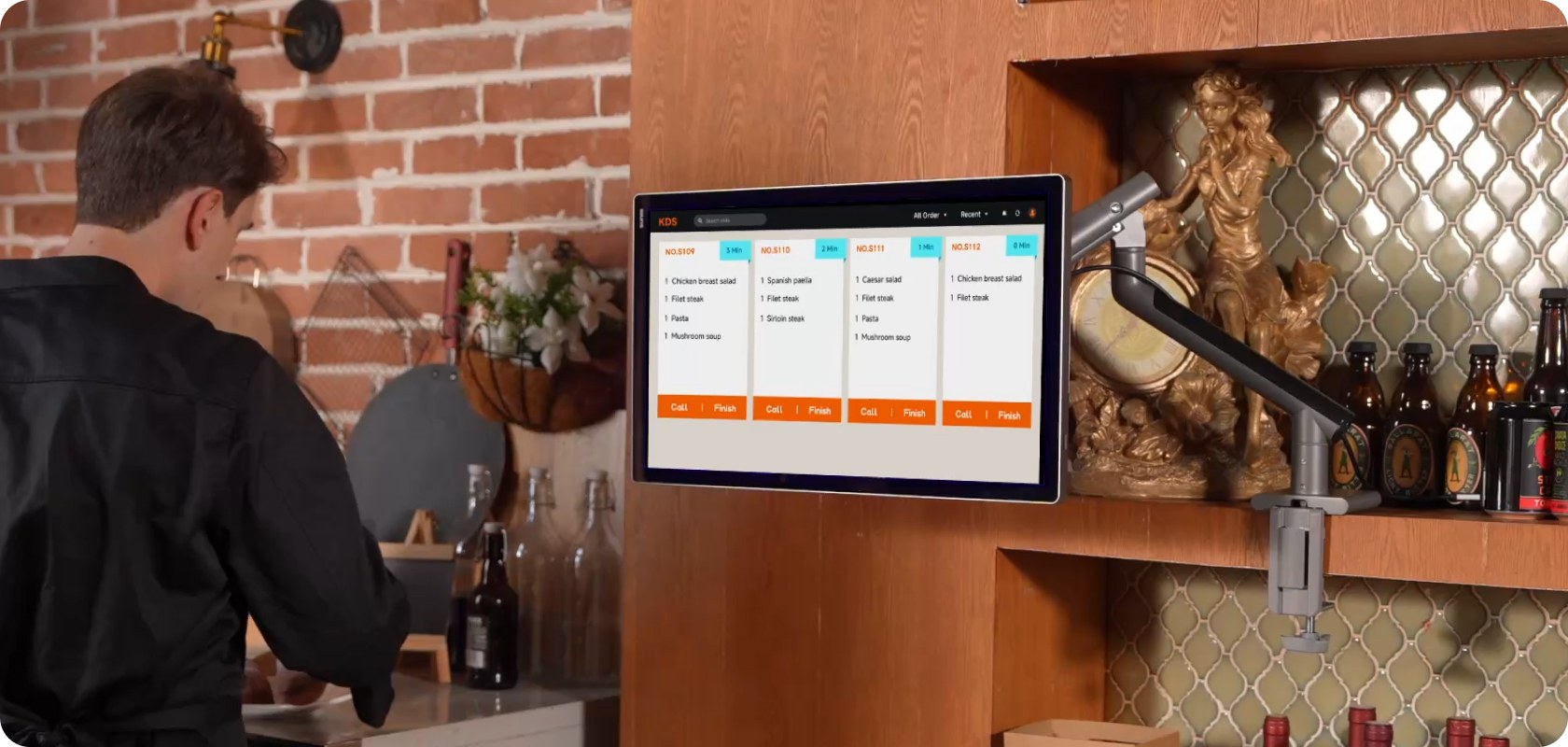
- Kitchen display devices are locked into KDS-only kiosk mode , servers cannot access settings or install apps
- A printer issue at Store #34 is diagnosed via remote print log review; a configuration tweak fixes it remotely in 5 minutes
ISV Deploying to 30 Merchant Locations
An independent software vendor provides a salon management app on SUNMI V3 PLUS tablets. With TMS:
- App updates are distributed exclusively to their merchant base through a private app store
- Grayscale rollout: new app version pushed to 3 beta merchant stores first; no issues after 48 hours → full rollout
- If a merchant cancels their subscription, the IT team revokes the app assignment remotely , the app is uninstalled from the merchant’s device automatically
Retail Chain with Mixed Hardware
A retail chain runs SUNMI D3 MINI at registers and a few legacy Android tablets from another vendor. TMS supports third-party Android enrollment , both device types are managed from the same SUNMI Partners Platform console, with SUNMI devices getting full TMS feature access and legacy devices getting standard MDM coverage.
FAQ
Is SUNMI TMS really free?
Yes. Core fleet management features , app deployment, kiosk mode, configuration templates, geofencing, device monitoring, and OTA updates , are included at no cost with every SUNMI device. The SUNMI Partners Platform is free to use; there are no per-device or per-month fees for standard TMS features.
Which SUNMI devices support TMS?
All current-generation SUNMI devices support TMS, including: T3 PRO, T3 PRO MAX, D3 PRO, D3 MINI, V3, V3 PLUS, V3 MIX, K2, K2 MINI, CPad, L3, T2, and T2 MINI. Older models (T1, S2) have limited or no TMS support , check with Rosper for specifics.
How do I enroll devices in TMS?
Devices can be enrolled via QR code (best for small fleets), SMS (best for remote field deployment with SIM cards), or batch CSV import (best for 50+ devices). All three methods are available in Device List → Add Device in the SUNMI Partners Platform.
What’s the difference between TMS and SUNMI DMP?
DMP (Device Management Platform) and TMS are the same system. You may see both names in different SUNMI materials. Both refer to the cloud-based management console accessible through the SUNMI Partners Platform.
Can I manage non-SUNMI devices with TMS?
Yes. The SUNMI Partners Platform supports enrolling third-party Android devices (running Android 8.0 or higher) in addition to SUNMI hardware. This lets you manage a mixed fleet from a single console.
How does remote control work on TMS?
Remote control requires the device’s remote access mode to be set to Unattended before the device is installed. Go to Remote Assistance → Device Settings on the device and enable unattended access. Once enabled, you can view the screen and take full control from the TMS dashboard. If a device is set to Attended, remote control requires someone to accept the session on-screen.
Does TMS work with my POS software?
SUNMI’s ecosystem includes 33,000+ apps in the SUNMI App Market and 66,000+ partner integrations. If your POS app is available on Google Play or as a custom APK, it can be managed through TMS. Contact Rosper to verify compatibility with your specific software.
Can Rosper help set up TMS?
Yes. Rosper offers free TMS setup assistance with hardware purchases, including help with organizational hierarchy, configuration templates, and enrollment. Paid pre-deployment configuration service is also available for teams that want devices shipped fully configured and ready to deploy.
Ready to Manage Your SUNMI Fleet?
Whether you’re running 5 devices or 500, SUNMI TMS has the capabilities you need to centralize device operations , built into the hardware you’ve already purchased. No per-device fees, no third-party subscriptions, no complex integrations.
As a SUNMI authorized distributor in the United States and Canada, Rosper can help you select the right SUNMI hardware for your deployment, configure TMS before your devices ship, and provide ongoing support as your fleet grows.
Browse SUNMI Devices on Rosper.com , Ships from 8 warehouses across the US and Canada. Most orders arrive in 2–7 business days. SUNMI’s official 3-year warranty included.
*Have questions about TMS setup or SUNMI fleet deployment? Contact Rosper’s solutions team.*