
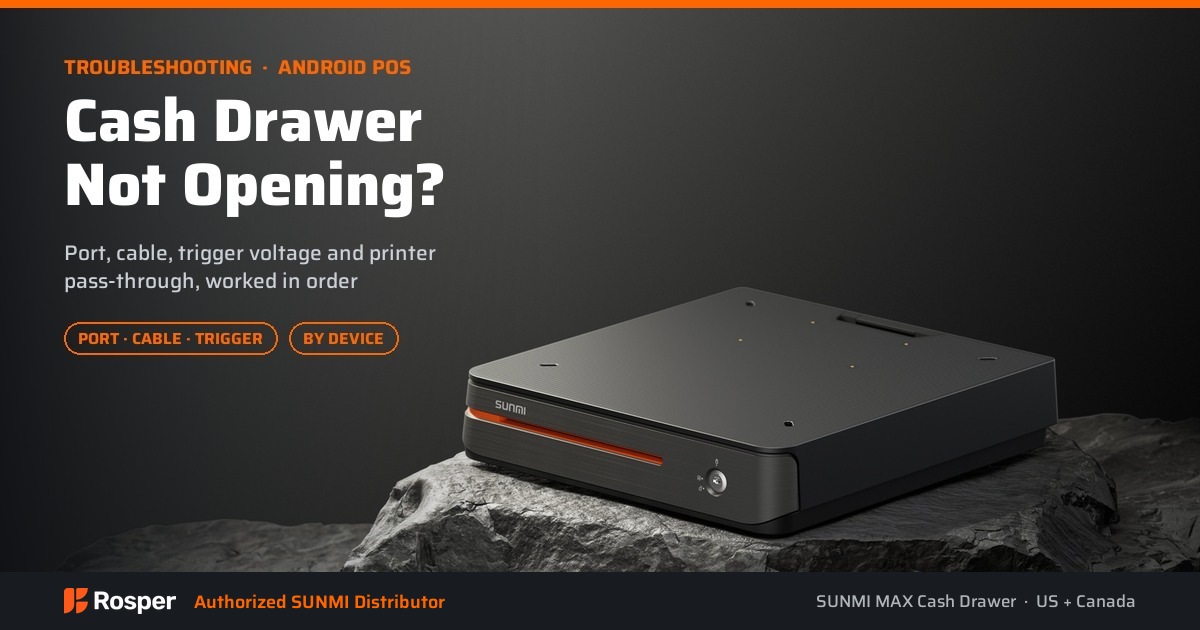
A drawer that will not open stops a lane. It is also one of the most commonly misdiagnosed faults on a counter, because the drawer itself is almost never the part that is broken.
This guide works through the causes of a cash drawer not opening on an Android terminal in the order they should be checked, from the physical port through to the application layer.
Related reading: how the all-in-one desktop range handles drawer and printer ports. It is written for operators and support teams who need to resolve this on a live counter rather than send hardware back.
Key Takeaways
- The drawer is rarely the failed part. In most cases the trigger never reaches it.
- Check what the drawer is plugged into. A drawer connected through a printer behaves differently from one on a terminal port.
- The connector fitting does not mean the wiring matches. RJ11 and RJ12 look similar and serve different purposes.
- Trigger voltage has to match. A 24 V drawer on a 12 V trigger will not open reliably, or at all.
- Test with a known-good command first. Isolate hardware from your application before you escalate.
First: Is This a Hardware Fault or a Provisioning Problem?
Before tracing a single cable, rule this out. A large share of reported drawer failures are not electrical at all. The device is fine, the drawer is fine, and the kick command is never issued because the terminal is not fully provisioned into the account that owns the application.
This matters because the two problems look identical at the counter. The cashier presses the button, nothing happens, and it gets reported as a broken drawer.
Three checks separate them in a couple of minutes:
- Is the device registered to the correct account? If the terminal was supplied through a different channel, or transferred between accounts, its serial number may not sit under the account your application expects.
- Does the application have the permission it needs? Drawer kick is usually a privileged action. An application running without the right entitlement can print a receipt successfully and still be unable to open the drawer.
- Does it fail on every device, or only one? If a second identical terminal on the same counter opens its drawer with the same cable and the same application build, the problem is specific to that unit’s setup, not to the hardware model.
A useful shortcut: if the drawer has never opened since the terminal was installed, provisioning is the more likely cause. If it worked and then stopped, the wiring and configuration checks below are the better starting point.
Cash Drawer Not Opening: How the Trigger Actually Works
A cash drawer has no intelligence. It contains a solenoid that releases a latch when it receives a voltage pulse. Everything upstream of that pulse is where faults live.
There are two common wiring paths. The drawer plugs into a dedicated port on the terminal, or it plugs into the receipt printer and the printer passes the kick signal through. Which one you have changes every step below.
Some counter terminals carry a dedicated cash drawer port alongside a serial port that accepts a physically similar connector. Those two are easy to confuse and are a frequent source of this fault, so check the port labelling on your specific unit rather than going by the shape of the plug.
Still Need a Compatible Cash Drawer Setup?
Share your terminal model, printer or interface, POS app, and the symptoms you are seeing, your destination, and target date. Rosper will confirm a compatible cash drawer and interface configuration, current warehouse availability, and a quote with a realistic lead time. For a multi-site deployment, include the site count and rollout schedule so we can plan staging and kitting.
Step by Step
1. Confirm which device the drawer is connected to
Trace the cable. If it ends at the printer, the printer is issuing the kick and the terminal is only telling the printer to do it. If it ends at the terminal, the terminal is issuing it directly.
This single question resolves a large share of cases, because teams frequently troubleshoot the terminal when the printer is the device in the path.
2. Check the port, not just the plug
An RJ12 cash drawer port and an RJ11 serial port accept similar looking connectors. A drawer plugged into a serial port will never open, and nothing about the fit will warn you.
Confirm against the terminal’s port labelling that the cable is in the drawer port.
3. Check the trigger voltage
Cash drawers are commonly built for 12 V or 24 V solenoids. If the drawer expects a higher voltage than the port supplies, it will either fail to open or open only intermittently when the solenoid is cold.
Intermittent opening is the signature of a voltage mismatch rather than a broken drawer. Check the drawer’s rating against what the port or printer supplies.
4. Check the cable
Cash drawer cables are not all wired identically even when the connectors match. A cable that worked with previous hardware may have the trigger on a different pin.
The fastest test is a known-good cable supplied with the drawer or the terminal, rather than reasoning about the pinout.
5. Test with a known-good command
Before suspecting your application, trigger the drawer from a tool you know works. A printer test utility or a demo application isolates hardware from software.
If the drawer opens on the test and not in your application, the fault is in your application’s kick command or its printer configuration, not in the hardware.
6. Check the application’s kick configuration
Most Android applications send the drawer kick as part of the receipt print job. If printing is configured to a different device than the one the drawer is attached to, the receipt prints and the drawer stays shut.
Also check whether the kick is enabled at all. It is frequently a per-payment-type setting, so a drawer that opens on cash and not on card is configuration rather than hardware.
7. Check the drawer’s own lock
A manual key lock overrides the solenoid on most drawers. If the drawer is locked, no electronic trigger will open it, and the symptom looks identical to an electrical fault.
Where the Drawer Port Actually Is, by Device
The first troubleshooting step depends on which device is issuing the kick, and that is not the same across the range.
| Device | Where the drawer connects | What to check first |
|---|---|---|
| SUNMI D3 PRO | Check the terminal for a dedicated drawer port | Confirm against the port labelling that the cable is in the drawer port, not an adjacent serial port. |
| SUNMI T3 PRO MAX | Built-in 80mm printer | The drawer normally hangs off the printer, so the printer is the device issuing the kick. |
| SUNMI T3 PRO | External printer | No built-in printer, so the drawer path runs through whichever receipt printer you added. |
| SUNMI CPad | Multi-Function Pivoting Base (C20000108) | The tablet itself has no drawer port. The base carries an RJ12 port alongside LAN and USB. |
The CPad case catches people out most often. Buyers sometimes look for a drawer port on the tablet and conclude the device does not support one. The port is on the pivoting base, which is a separate part number.
Quick Diagnostic Table
| Symptom | Most likely cause | First thing to check |
|---|---|---|
| Nothing happens, no click | Trigger never reaches the solenoid | Port, cable, and which device the drawer is plugged into |
| Audible click, drawer stays shut | Drawer is locked, or latch is jammed | The manual key lock |
| Opens sometimes | Voltage or cable marginal | Drawer voltage rating against the supplying port |
| Opens on cash, not on card | Application setting per payment type | The kick configuration in your application |
| Receipt prints, drawer does not open | Printer routing mismatch | Which printer the application is printing to |
| Worked before a hardware change | Different pinout or port type | Use the cable supplied with the new hardware |
The drawers, printers and terminals referenced here are listed on the SUNMI MAX Cash Drawer, with the port layout noted per model.
When to Escalate
Escalate once you can show that a known-good command from a test tool does not open the drawer, using a known-good cable, in the correct port, with matching voltage.
Include the terminal model, the drawer model and its voltage, which device the drawer is connected to, and what the test tool did. That set of facts is what turns a support thread into a same-day answer instead of a week of questions.
If the unit is within its warranty term, Rosper assists with the claim. Coverage terms are on the warranty page.
Rosper is SUNMI’s authorized distributor for the United States and Canada. Our team helps buyers match SUNMI devices, compatible accessories and deployment services to the workflow, confirm exact configurations and current warehouse availability, and coordinate shipping, staging, kitting and warranty support for pilots or multi-location rollouts. Contact our sales team for configuration guidance or to check current stock.
Frequently Asked Questions
Why will my cash drawer not open from the POS terminal?
In most cases the trigger never reaches the drawer. Check which device the drawer is plugged into, whether it is in the cash drawer port rather than a serial port, whether the cable is wired for that hardware, and whether the drawer’s voltage rating matches the supplying port.
Should the cash drawer connect to the terminal or the printer?
Either is normal. If it connects through the printer, the printer issues the kick and your application has to be printing to that printer. If it connects to the terminal, the terminal issues it directly. Knowing which path you have determines every troubleshooting step.
What is the difference between the RJ11 and RJ12 ports?
They look similar and serve different purposes. On a countertop terminal the RJ12 port is the cash drawer port and the RJ11 port is a serial port. A drawer plugged into the serial port will never open, and the connector will still fit.
Why does my drawer open sometimes but not always?
Intermittent opening usually points at a voltage or cable problem rather than a failed drawer. Check the drawer’s solenoid voltage rating against what the port or printer supplies, and test with the cable supplied with the hardware.
The receipt prints but the drawer does not open. Why?
That combination usually means the application is printing to a different device than the one the drawer is attached to, or the kick is disabled for that payment type. It points at configuration rather than hardware.
Is my cash drawer broken or is it a configuration problem?
Usually the latter. The drawer itself is rarely the failed part. If the drawer has never opened since installation, check whether the terminal is registered to the correct account and whether the application has permission to issue a drawer kick, before tracing cables.
My SUNMI CPad has no cash drawer port. How do I connect a drawer?
The CPad tablet itself does not carry a drawer port. The CPad Multi-Function Pivoting Base, part number C20000108, carries an RJ12 port alongside LAN and USB.
Still Stuck?
Send us the terminal model, the drawer model and voltage, which device the drawer is connected to, and what happened when you tested with a known-good command. We will take it from there rather than starting the questions over.
Contact Rosper if you also need a replacement drawer, cable, or a compatible printer confirmed against your terminal.