
Table of contents
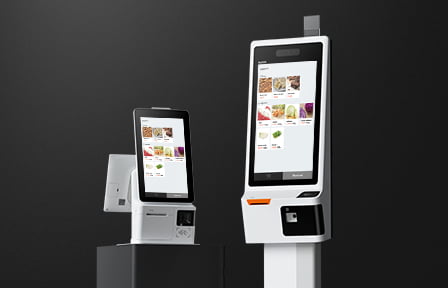
If you are working with the SUNMI kiosk mode for a US or Canadian deployment, this guide is written for you. Self-service kiosks have become the default front-of-house pattern for quick-service restaurants, fast-casual chains, airport food concepts, and a fast-growing class of retail and grocery formats. The hardware side is increasingly standardized on Android all-in-ones like the SUNMI K2 Mini and K2 with a 10.1 or 15.6-inch customer face, and vertical-mount P-series devices. What trips up most operators is not the hardware, it is locking the device down so a customer can only use the single kiosk app you want them to use, while your IT team can still reach the device remotely when something goes wrong.
This is the job of SUNMI kiosk mode setup. Configured correctly, it pins one app to the screen, hides the navigation bar, survives reboots, requires a password to exit, and still lets your Rosper support engineer push a ROM update or pull logs. Configured incorrectly, it either lets a bored customer back out into Settings, or it locks the device hard enough that no one can fix it remotely. This guide walks through the correct setup end to end for US and Canadian operators using the SUNMI Partner Portal MDM.
Rosper is the authorized SUNMI distributor for the United States and Canada. We stock kiosk-class devices in our Maryland and Los Angeles warehouses and help operators stand up MDM accounts, kiosk configurations, and remote support workflows. If you would rather skip the setup and have us deliver pre-provisioned units, there is a direct contact path at the end.
What SUNMI kiosk mode setup is (and what it is not)

SUNMI kiosk mode is an MDM-driven policy that pins a single Android app to the device screen and locks everything else. It is applied through the SUNMI Partner Portal, which is the SUNMI MDM used by partners, ISVs, and their end customers in North America. The policy is enforced at the OS level, not inside the kiosk app, which means a buggy or compromised kiosk app cannot break out of it. It is also device-type scoped, not per-unit, so a single kiosk policy applies to every unit of a given SUNMI model under the same MDM account.
Kiosk mode is not the same as:
- Android screen pinning (user-level, easily exited).
- A “kiosk launcher” app downloaded from Play Store (application-level, does not survive a crash or reboot).
- Full device lockdown with no operator access (you will cut off your own remote support team if you set it up this way).
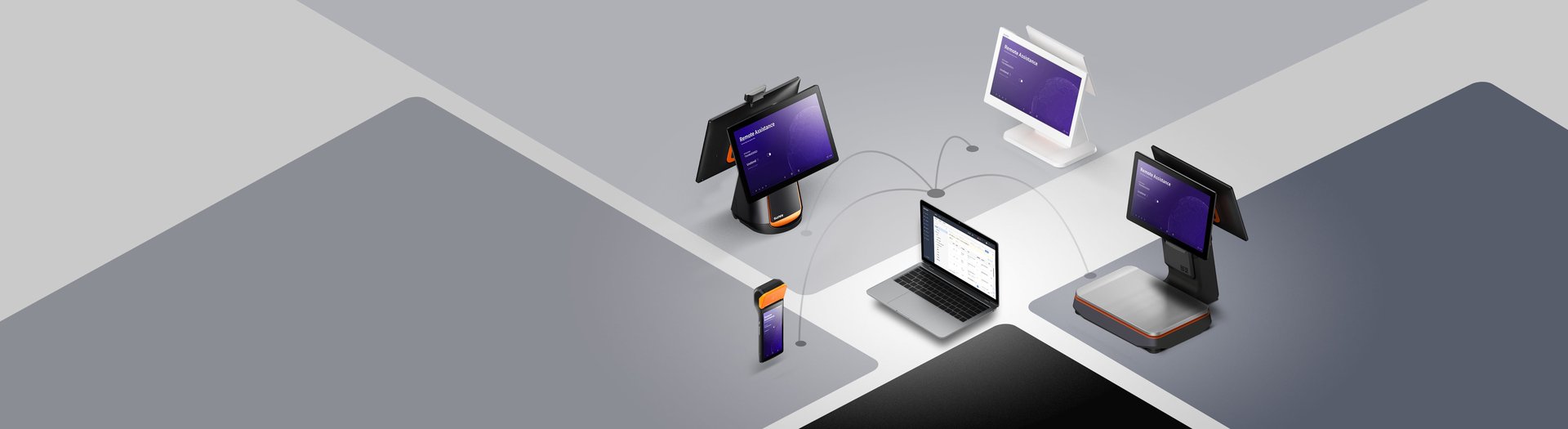
Done correctly, kiosk mode is a managed policy that co-exists with SUNMI Remote Assistance, the SUNMI APK push service, and the RemoteManager log pull tools. The only official way to set it up for production in North America is through the Partner Portal MDM. There is no supported path that skips MDM.
Prerequisites before you start
Before you open the MDM console, make sure the following are in place:
- An active SUNMI Partner Portal MDM account. If Rosper sold you the devices, you already have one, or we can create one for you. If not, you can apply at partner.sunmi.com. For a full walkthrough of the Partner Portal, see the SUNMI MDM Partner Portal guide.
- All kiosk devices assigned under your MDM account. SUNMI ties devices to accounts by serial number. If your units are not yet assigned, submit the SN list via the Rosper contact form from your registered account email, and we will coordinate binding with SUNMI.
- The kiosk app APK, signed and ready. It can be your own APK, an ISV partner APK, or an APK uploaded to the SUNMI App Store. For production, we strongly recommend uploading to the SUNMI App Store so updates flow through the Partner Portal release pipeline.
- The Remote Assistance APK, if you plan to use SUNMI remote support. It must be added inside the kiosk policy, not outside it. If it is not included in the kiosk app list, remote control will silently fail the first time a device enters kiosk mode, because the kiosk enforcement kills the remote control server.
Step-by-step: setting up kiosk mode in the SUNMI Partner Portal
Step 1. Log in and select the right MDM scope
Log in to your SUNMI Partner Portal account. Confirm you are in the MDM section of the platform and that the device group or sub-account you are configuring contains the devices you want to put into kiosk mode. Getting this wrong during your SUNMI kiosk mode setup is the single most common mistake: kiosk policies are applied at the account and device-type level, so a policy configured in the wrong account scope will either do nothing (devices are in a different account) or will roll out too widely (devices are in a sibling group you did not intend).
Step 2. Navigate to the Kiosk Model settings
From the left menu, go to ALL > System Customization > Kiosk Model. This is where SUNMI groups its kiosk policy by device type. You will see a list of every device type you currently have under the account (for example, T2s, K2, P2 Pro, T3 Pro, K2 Mini).
Step 3. Select a device type and assign the kiosk app
Pick the device type you want to put in kiosk mode (for example, K2 Mini if you are configuring a QSR ordering kiosk). Press the plus button next to that device type to open the kiosk app picker, and assign one app to that device type. In any SUNMI kiosk mode setup, a kiosk policy is not per-unit; it applies to every device of that type under the account.
If you need to pin two different kiosk apps to two different units of the same physical model (for example, two K2 Mini units, one running a burger concept, one running a coffee concept), you cannot do it inside one MDM account. You either split them into separate sub-accounts or use a single kiosk app that can switch experiences at runtime.
Step 4. Add the Remote Assistance APK inside the same policy
This step is what most teams miss. Inside the same kiosk policy, add the SUNMI Remote Assistance APK to the approved app list. This is the only way your remote support team (or Rosper) can reach a device after it has been locked into kiosk mode. If you skip this step and need support later, you have to physically visit the device, hold the power button to exit kiosk mode (see below), and add Remote Assistance then.
Step 5. Set a kiosk exit password
Before you save, set a password that exits kiosk mode. This password is required when anyone holds the power button on a live device to bring up the kiosk exit menu. Write it down in your IT runbook and share it only with the staff authorized to maintain the device. Do not use a four-digit debit PIN or a common default. A good kiosk exit password is long and stored in a password manager.
Step 6. Save and verify on a pilot device
Complete your SUNMI kiosk mode setup by saving the kiosk policy and waiting for it to push to your devices. The MDM pushes at its normal sync interval; if you do not want to wait, reboot the pilot device to pull the policy immediately. On the pilot device, confirm the kiosk app launches on boot, that swiping from the edges does not expose the system navigation bar, and that holding the power button prompts for the kiosk exit password.
Do not roll a brand-new kiosk policy to the entire fleet in one shot. Stage it to one or two devices first and verify the exit password and Remote Assistance path both work before you push to production.
How to exit kiosk mode on a live device
Press and hold the power button on the device. After a few seconds, the kiosk exit menu appears as an overlay, including a prompt for the kiosk exit password. Enter the password and tap Exit Kiosk in the top right corner. The device returns to the standard Android launcher until the next kiosk policy sync.
If the exit password set during SUNMI kiosk mode setup has been lost, the recovery path is through MDM: log in to the Partner Portal, change the policy, and re-sync the device. If the device is offline and the password is lost, it requires a factory reset, which wipes the device. This is why the exit password belongs in a password manager, not in someone’s memory.
Kiosk mode for specific North American use cases
QSR self-order kiosks. A K2 or K2 Mini running the ordering app after SUNMI kiosk mode setup, with the kitchen printer on a SUNMI NT312 cloud printer separately configured. If your kiosk also accepts payments, see PCI PTS 6.X on SUNMI payment devices. The kiosk app is the only thing the customer ever sees. The Rosper support engineer reaches the device over Remote Assistance when firmware or printing needs adjustment.
Airport and arena concessions. A K2 or P2 Pro mounted at a standing counter, running a concession ordering app. Kiosk mode prevents a customer from pulling up YouTube on a machine in the terminal. SUNMI Remote Assistance lets the IT team at a distant corporate office manage the device remotely across gate moves.
Retail self-checkout on SUNMI. A K2 with scanner, running the retail self-checkout app. Kiosk mode prevents a shopper from accidentally surfacing Settings while scanning, and keeps the device on the checkout app through shift changes. Remote Assistance handles the inevitable receipt-printer or barcode-scanner question without a site visit.
Appointment and check-in kiosks in healthcare, government, and service businesses. A smaller P2 Pro or CPad mounted in a lobby, running a check-in app. Kiosk mode locks the lobby device to the check-in form, and Partner Portal pushes the app update when the front-office process changes.
Common pitfalls to avoid
- Forgetting the Remote Assistance APK inside the kiosk policy. The device works fine for customers, but your support team is locked out on day one.
- During SUNMI kiosk mode setup, setting the kiosk policy at the wrong device-type scope. You end up with a “half-deployed” fleet where some units are in kiosk mode and others are not.
- Using the kiosk app APK from a USB stick instead of uploading to the SUNMI App Store. Every update becomes a manual field operation.
- Choosing a kiosk exit password that staff cannot remember. You end up factory-resetting devices to recover them.
- Skipping the pilot rollout. A bad kiosk policy pushed to a hundred units simultaneously means a hundred units to recover.
Kiosk mode and remote device support together
A well-configured SUNMI kiosk deployment has three layers. Kiosk mode pins the customer experience. Remote Assistance gives your IT or Rosper support engineer eyes-and-hands access to the device. Partner Portal pushes APK updates, ROM upgrades, and configuration changes across the fleet. When all three layers are in place, a kiosk fleet of dozens or hundreds of sites runs with only a small central support team, and on-site visits are reserved for hardware replacements.
Frequently asked questions
Q: Does SUNMI kiosk mode setup work without the SUNMI Partner Portal MDM?
No. Production kiosk mode on SUNMI devices is driven by the Partner Portal MDM. There is no supported configuration that skips the MDM.
Q: In a SUNMI kiosk mode setup, can I assign a different kiosk app per unit on the same model?
Not within a single MDM account. Kiosk policies are per device-type, not per-unit. If you need two different kiosk experiences on two units of the same model, split them into separate sub-accounts.
Q: How do I exit kiosk mode if I forget the password?
Change the policy in the Partner Portal and re-sync the device. If the device is offline and the password is lost, you need a factory reset, which wipes the device.
Q: Does SUNMI Remote Assistance work while a device is in kiosk mode?
Yes, but only if the Remote Assistance APK is included inside the kiosk policy. If it is not, kiosk enforcement kills the remote control server and remote support will silently fail.
Q: Can I apply kiosk mode to a SUNMI CPad Pay or T3 Pro?
Yes. Kiosk mode applies to any SUNMI device managed through the Partner Portal, including CPad Pay and T3 Pro. It is most commonly used on K-series kiosk devices and vertical-mount P-series units.
Q: Does Rosper pre-provision kiosk devices before shipping?
Yes. If you buy your kiosk fleet through Rosper, we can stage the devices under your MDM account, apply your kiosk policy, and ship them pre-configured so they boot directly into your kiosk app on first power-on.
Ready to deploy a kiosk fleet
If you are sizing a kiosk deployment in the US or Canada, Rosper can stock the hardware in Maryland or Los Angeles, stand up your Partner Portal MDM, apply your kiosk policy, and ship pre-provisioned units that boot into your app on first power-on. Start with Rosper’s kiosk hardware catalog and then use our contact page.